How to Load SnapCaption TSV Files Into Photo Mechanic Code Replacement
You're back from an evening game with around 150 photos on your card and the editor needs captioned selects on a tight turnaround. Player names have to be right. Photo Mechanic code replacement is the fastest way to caption manually, but it only works if the right roster file is loaded before you start typing.
SnapCaption generates the TSV roster file you need. The Photo Mechanic code replacement workflow takes about 30 seconds to set up once you know where to look. This post walks through the exact loading steps for SnapCaption files and how to verify the codes are working before you commit to a captioning session.
Setting Up Photo Mechanic Code Replacement With a SnapCaption File
In Photo Mechanic, go to Edit then Settings then Code Replacements on macOS, or Tools then Preferences then Code Replacements on Windows. The panel shows two columns: the shortcode you'll type and the replacement text that gets inserted. Click Load and point to your SnapCaption-downloaded TSV file.
Photo Mechanic accepts tab-separated files natively. The shortcodes you set up in SnapCaption map to the player information columns you selected during the TSV download. Once loaded, each time you type that shortcode in a caption field and hit return, Photo Mechanic replaces it with the full text.
A common mistake is loading the file but leaving the toggle disabled. Check that Use Code Replacements is enabled in the same panel. Without that toggle on, the file is in memory but nothing happens when you type the shortcode. See our Photo Mechanic shortcodes guide for naming conventions that hold up across a season.
Verifying Codes Before You Commit to a Full Caption Pass
Before you start captioning a full game, run a verification pass. Open one of the test images in Photo Mechanic, click into the caption or IPTC field, and type one or two of the shortcodes from your roster. They should expand immediately. If they don't, the file isn't loaded correctly or the shortcode prefix in SnapCaption doesn't match what you're typing.
The second pass that catches problems is verifying duplicate jersey number handling. SnapCaption resolves duplicates with sequential letter suffixes for most leagues, so two players sharing a number become 15a and 15b. Football uses position suffixes (o for offense, d for defense, s for special teams). Verify these special cases work on test images before captioning real frames.
If a shortcode doesn't expand, double-check the file's column delimiter. A file saved as CSV instead of TSV won't parse correctly in the Photo Mechanic code replacement panel. Re-download from SnapCaption and confirm the TSV extension before trying again. When rosters change between weekly updates, keeping your caption files current is the difference between a clean caption pass and a midnight correction.
Building the Photo Mechanic Code Replacement Workflow Into Game-Day Prep
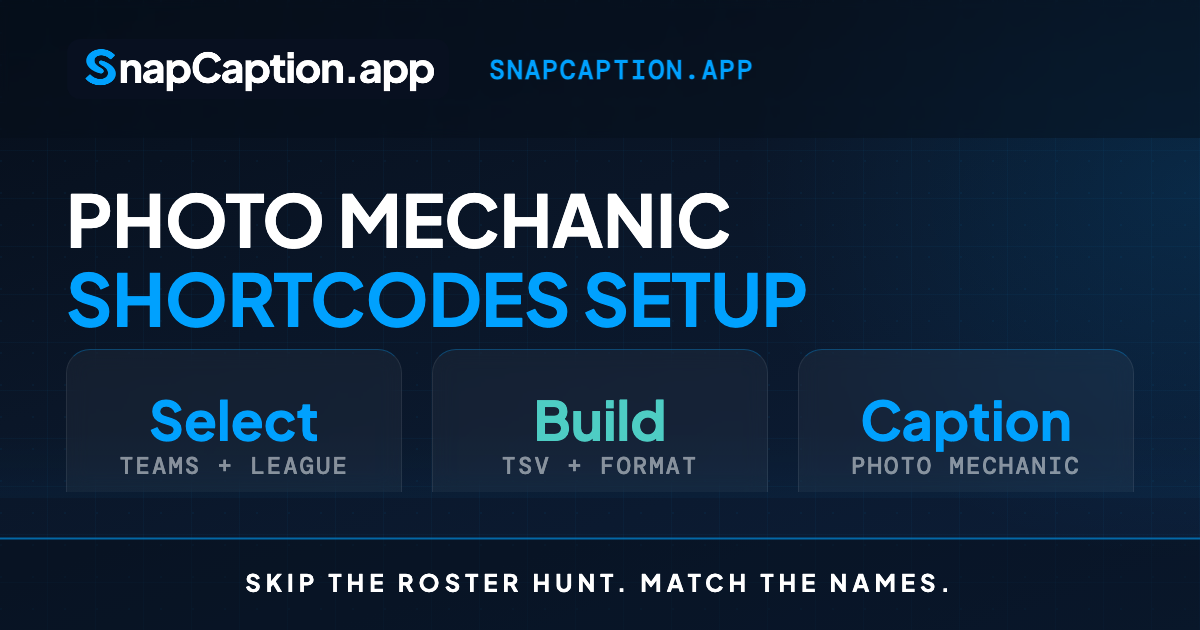
The full SnapCaption to Photo Mechanic code replacement workflow has three steps before the game starts. Select your league and teams in SnapCaption, configure the columns and shortcode structure you want, and download the TSV file. Total time: under a minute. Load the file into Photo Mechanic's code replacement panel before you start captioning, not after.
When you've got a tournament weekend with multiple opponents, generate roster files for the teams you'll see. Keep them named by team and date in a folder you can find quickly. The Photo Mechanic code replacement panel will reload a new file faster than you can build one from scratch.
For freelancers covering one game, the prep takes a minute. For photographers with a regular client schedule, save your SnapCaption shortcode set as a preference so the columns and prefix structure stay consistent across the season. The reference frame habit pairs well with this workflow: when a player ID is uncertain, a quick reference frame after the keeper gives you the number to type.
Get Your Roster File Ready Before Game Time
The Photo Mechanic code replacement workflow only saves time if the roster file is loaded before captioning starts. SnapCaption takes the longest step (building the TSV file) and shrinks it from an hour to under a minute. Spend that saved time on captioning quality and verification instead of typing player names manually.
Code replacement is the fastest way to caption. SnapCaption makes it faster.
Frequently Asked Questions
Where do I find the code replacement panel in Photo Mechanic?
On macOS, go to Edit then Settings then Code Replacements. On Windows, the path is Tools then Preferences then Code Replacements. The panel includes a Load button for tab-separated files.
How do I know if my SnapCaption TSV file loaded correctly?
Type one of the shortcodes into a caption or IPTC field in Photo Mechanic and hit return. If it expands to the full player text, the file loaded correctly and the Use Code Replacements toggle is on.
Can I switch between multiple Photo Mechanic code replacement files mid-session?
Yes. Reload a new TSV file in the code replacement panel and the active shortcodes update immediately. Keep files named per team and date so you find the right one fast.
What happens if a player's jersey number changes mid-season?
SnapCaption updates rosters weekly, so re-download the TSV file before your next game. The new shortcode for that player will reflect the updated jersey number when you reload the file into Photo Mechanic.
Does SnapCaption work with Photo Mechanic Plus and the standard version?
Yes. The TSV format is identical for both, and the code replacement panel works the same way in Photo Mechanic and Photo Mechanic Plus. Plus users get extra culling and metadata features, but the code replacement loading flow is unchanged.