
SnapCaption User Guide
Master your workflow in minutes with our step-by-step tutorial
Welcome to SnapCaption, the modern code replacement tool that gives sports photographers accurate rosters, automated workflows, and complete customization control. Whether you’re captioning hundreds of photos on deadline or simply tagging players for your agency, SnapCaption saves you time by eliminating manual data entry and roster errors.
This guide will show you how to get your first code replacement file created in just minutes and how to customize it to match your exact workflow.
Getting Started
To begin, you must have an active subscription. Once you’re logged in, click Create File from the main menu to access the Code Replacement Manager.
Understanding the Code Replacement Manager
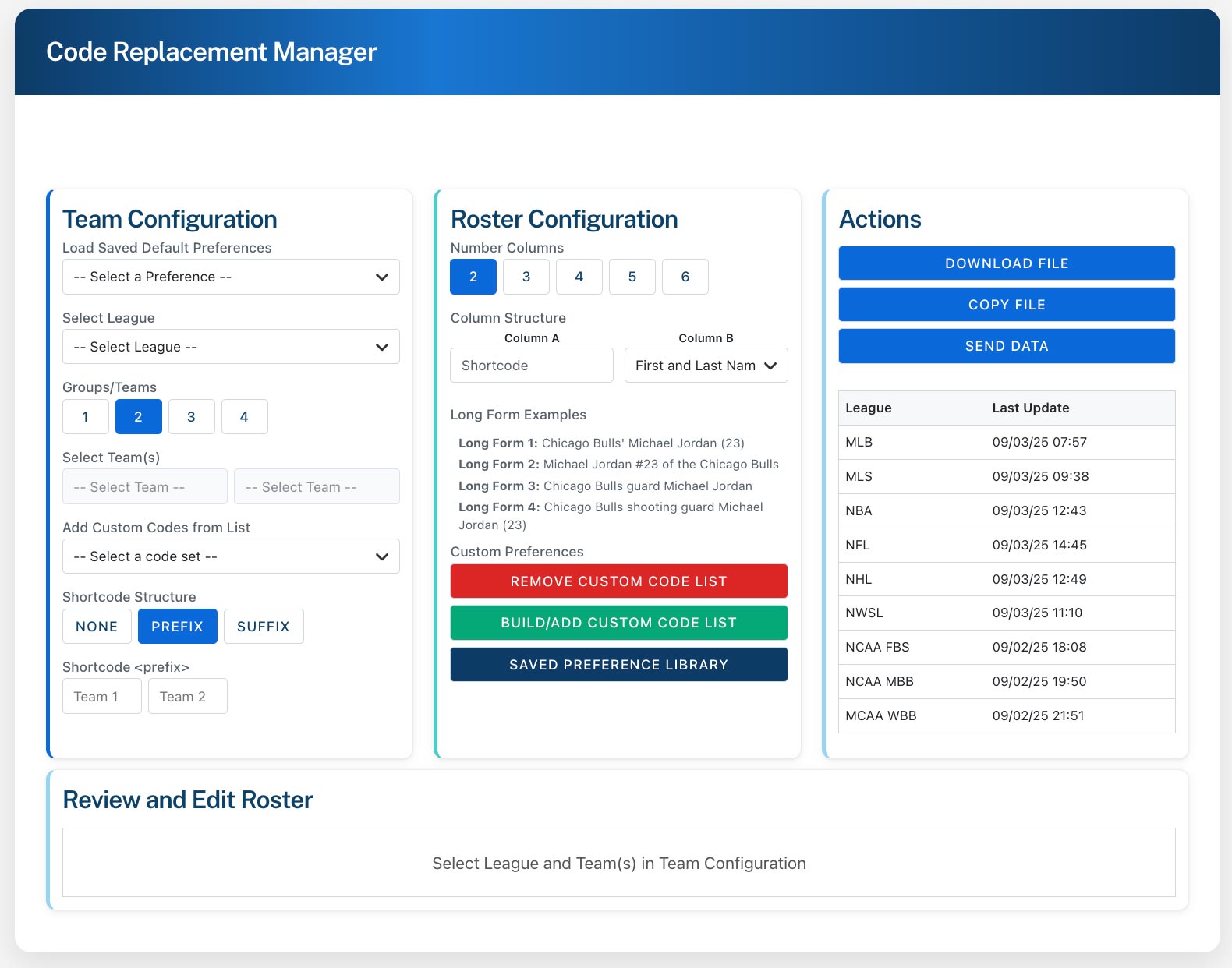
The Code Replacement Manager is your central hub for creating and managing rosters. It is organized into four main sections to make your workflow seamless:
1. Team Configuration: Select your league and teams, customize your shortcode structure, and add commonly used caption codes.
2. Roster Configuration: Adjust the number of columns and the specific data that appears in each column of your file.
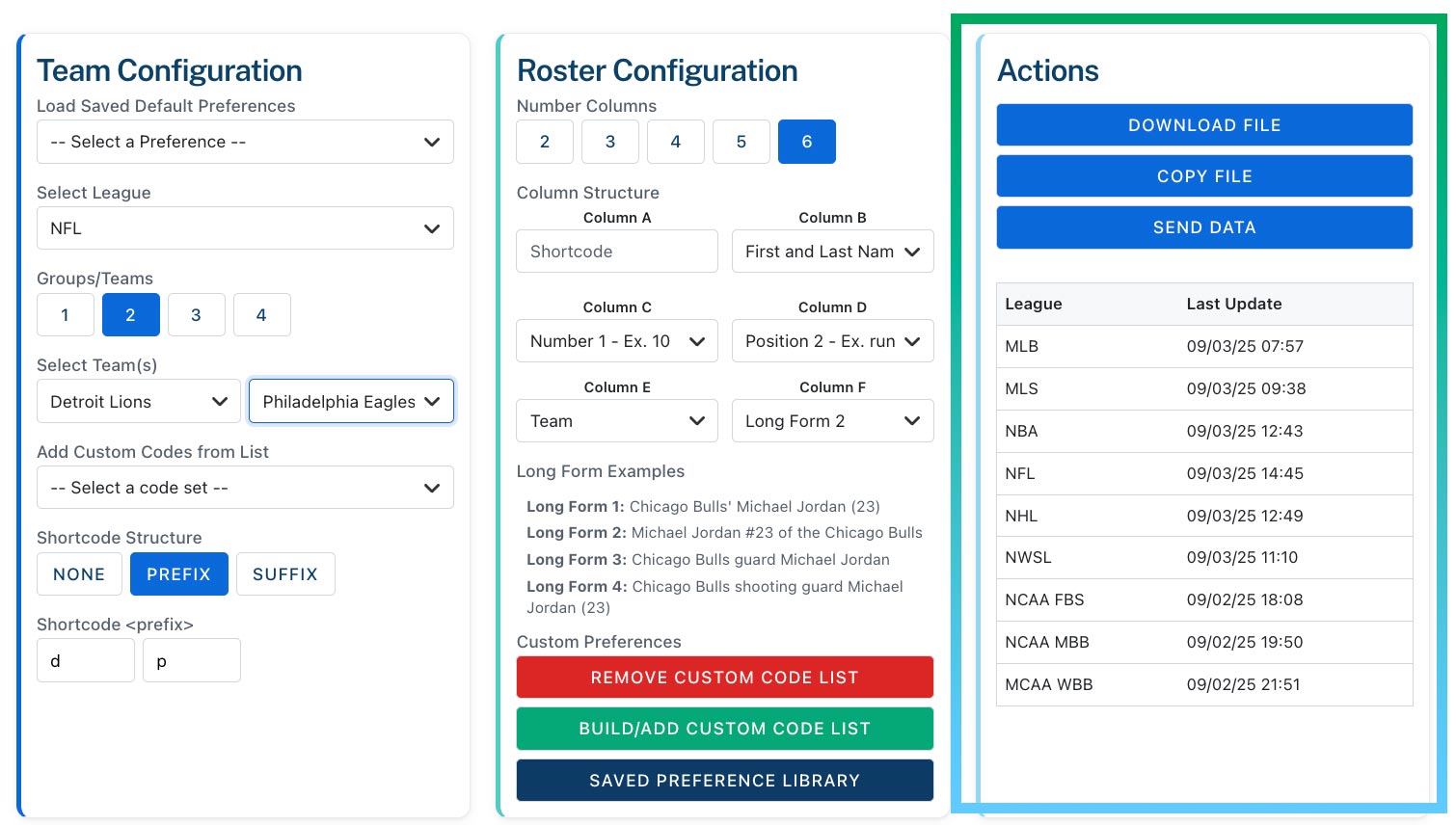
3. Actions: Download, copy, or email your final code replacement file and see when rosters were last updated.
4. Review and Edit Roster: View a live preview of your roster, make final edits, and see any custom codes you’ve added.
Creating Your First File: A Step-by-Step Walkthrough
Follow these steps to generate your first custom roster file.
Select Your League & Teams
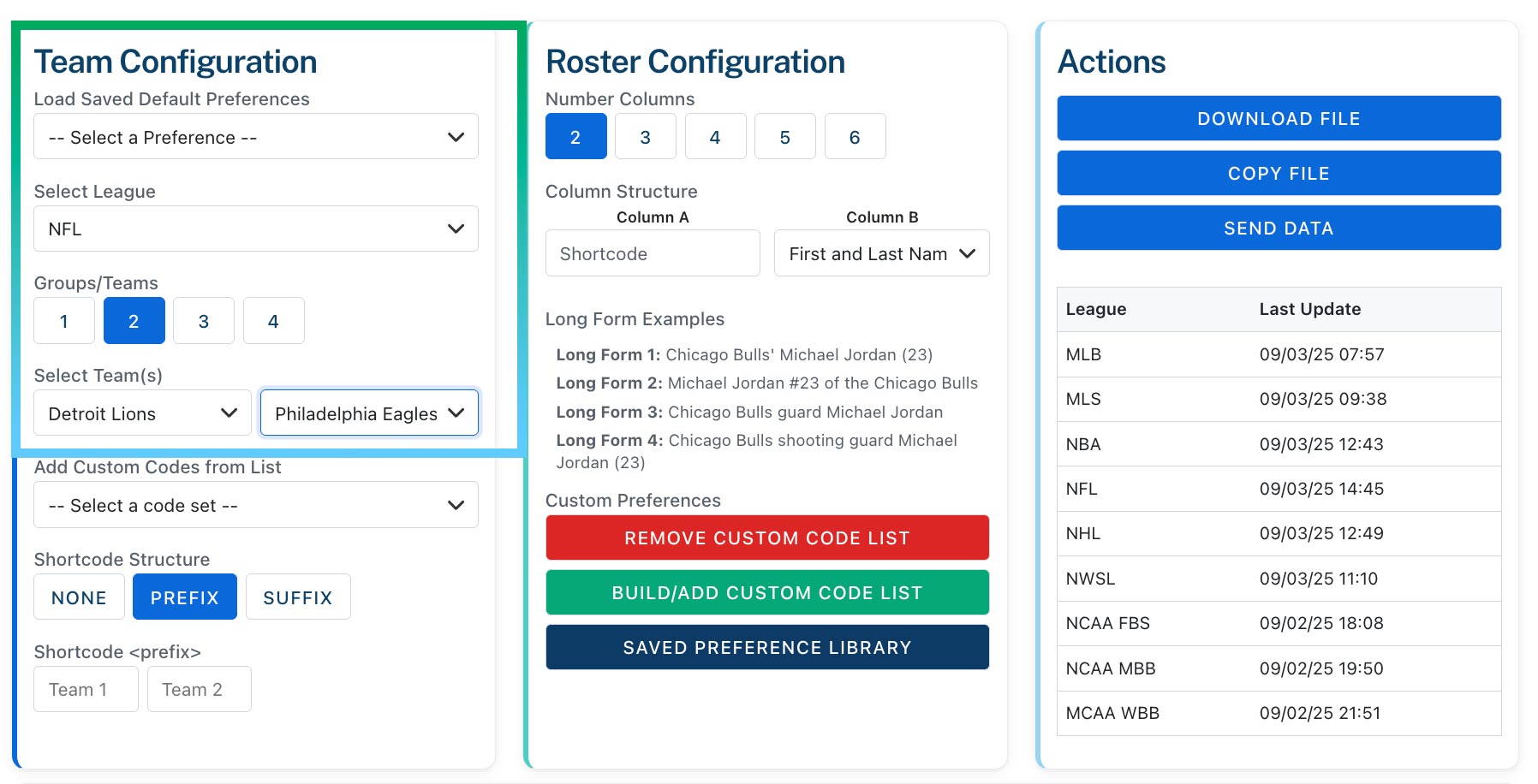
Start by choosing a league from the Select League dropdown. For this example, we’ll choose NFL. Next, select the number of teams you need—from one to four. We’ll select two teams for this walkthrough.
Now, pick your specific teams from the dropdown lists. We will select the Detroit Lions for Team One and the Philadelphia Eagles for Team Two. Notice that the Review and Edit Roster section updates automatically as you make selections.
Add Custom Action Codes
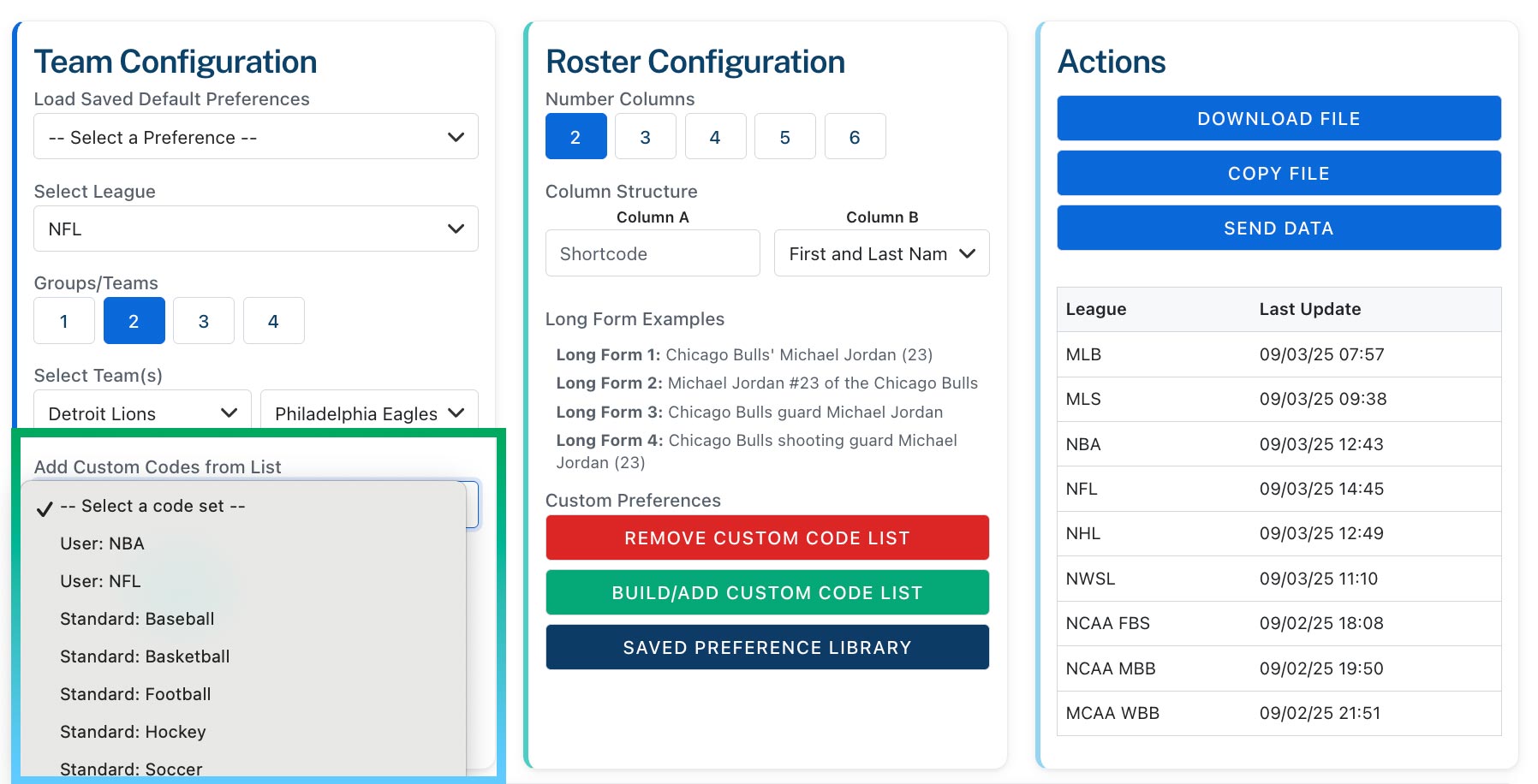
If you have specific codes for actions you use frequently (e.g., “td” for “touchdown”), you can add them to your file. In the Add Custom Codes dropdown, select from pre-loaded sport-specific codes or any custom lists you have created. For this example, we’ll select our custom NFL codes list. These codes will appear at the bottom of the main roster grid.
Configure Shortcodes & Column Structure
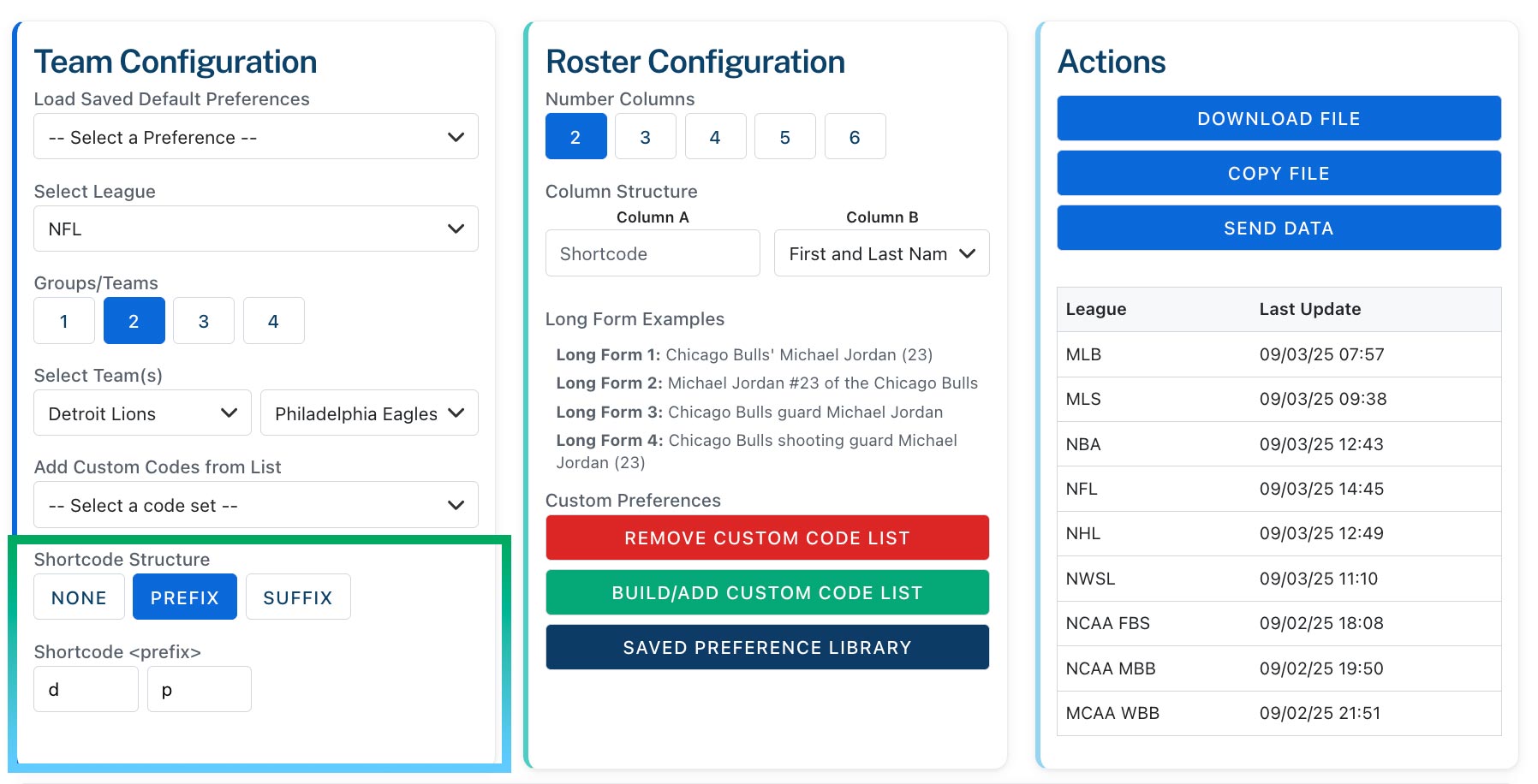
First, set up your shortcode structure. You can use the default prefixes (a, b, c, d) or change them to something more intuitive. For our example, we’ll change the prefixes to ‘d’ for the Detroit Lions and ‘p’ for the Philadelphia Eagles. Now, a player’s code will start with ‘d’ or ‘p’ followed by their number (e.g., `d25`).
Shortcode Format Options
- Custom Prefixes: Use team initials like “d” for Lions, “p” for Eagles.
- Position Mode: Choose prefix (d25) or suffix (25d) format. Most photographers prefer prefix mode for a faster typing rhythm.
Next, define your file’s structure. Select the Number of Columns you want (from two to six). We’ll choose six. Then, use the Column Structure dropdowns to define the data for each column. For our example, the setup is:
- Column A: Short Code (always the first column)
- Column B: First and Last Name
- Column C: Player Number
- Column D: Position
- Column E: Team Name
- Column F: Long Form 2 (e.g., “Jared Goff (#16, Detroit Lions)”)
Review, Edit & Export
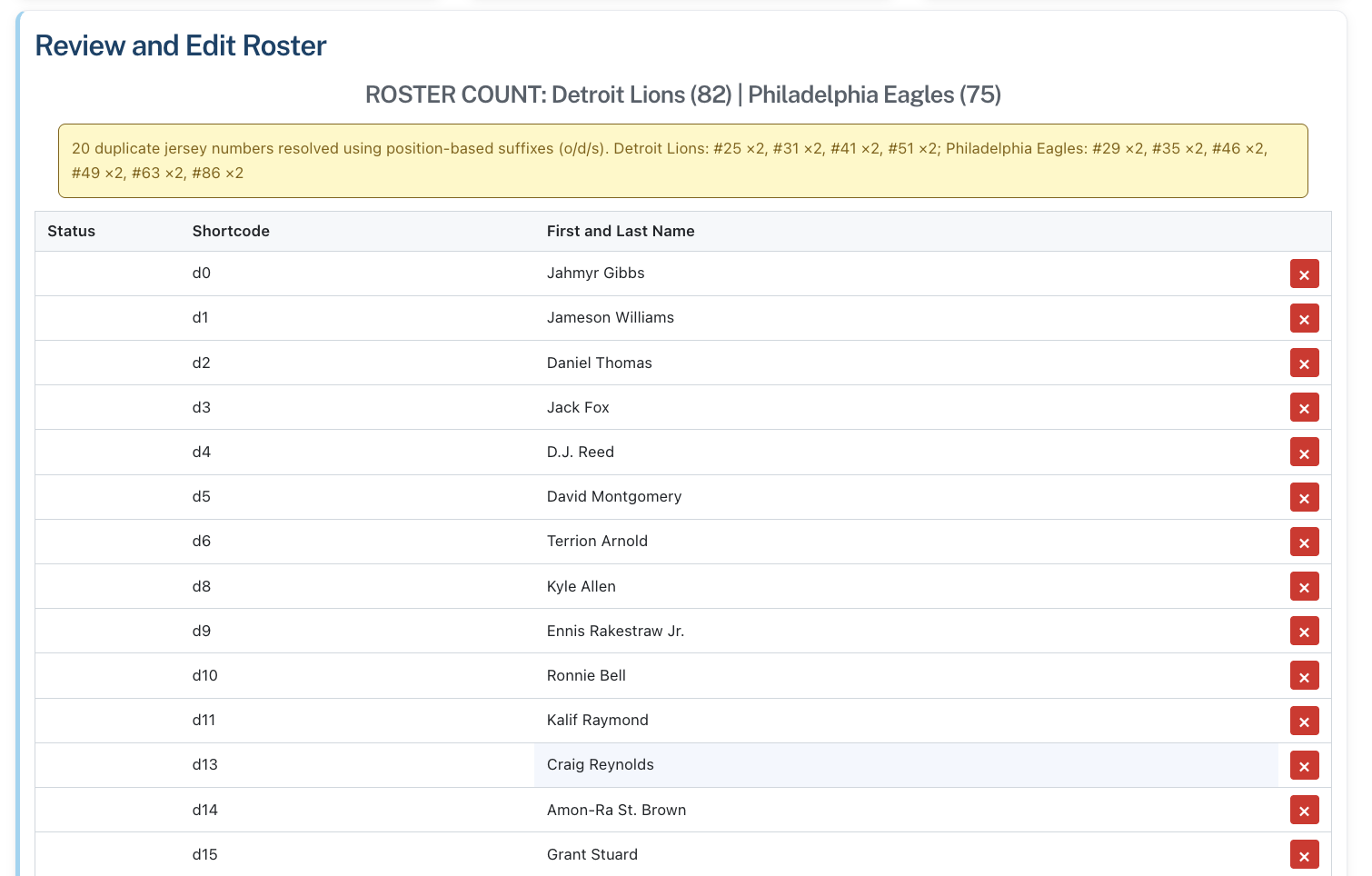
Before you finalize your file, carefully review your roster in the Review and Edit Roster section. You can click on any cell to make quick edits to a player’s name, number, or shortcode. If you edit a player’s number, the shortcode in Column A will update automatically.
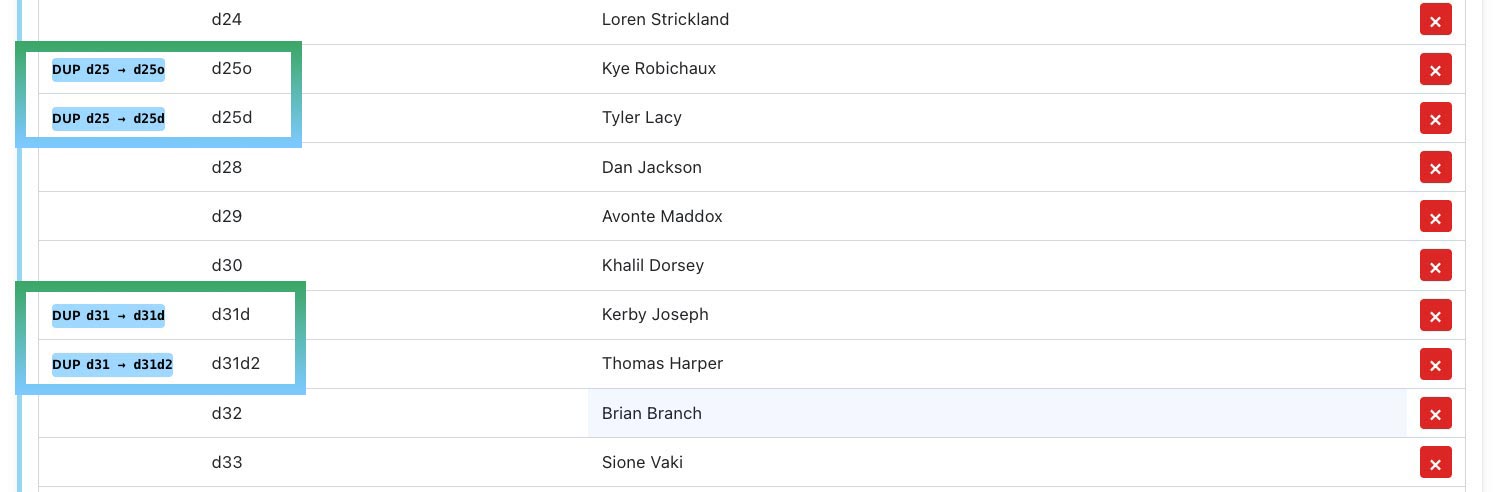
Pro Tip: Look for a blue box on the left of a row. This indicates our system has automatically handled a duplicate jersey number to ensure every shortcode is unique. (More on this below!)
Once you’re satisfied with the roster’s accuracy, choose an export option from the Actions panel:
- Download: Save the TSV file directly to your computer.
- Copy: Copy all data to your clipboard in a tab-delimited format, ready to paste into any application.
- Email: Send the file to yourself or a colleague.
Time-Saving Features
Automated Duplicate Handling
Our system automatically handles duplicate jersey numbers so you never have to manually adjust codes. A blue box on the left of the row indicates a duplicate has been resolved, ensuring no two shortcodes are ever identical.
For Football (NFL, NCAA FBS)
The app intelligently adds position-based identifiers to distinguish players on different units:
- If #85 is worn by multiple players:
- h85o → Offensive player
- h85d → Defensive player
- h85s → Special teams player
For Most Other Sports (NBA, NHL, MLB, etc.)
The app adds letter sequences to distinguish players:
- If two players wear #23:
- h23a → First player wearing #23
- h23b → Second player wearing #23
Using Saved Preferences
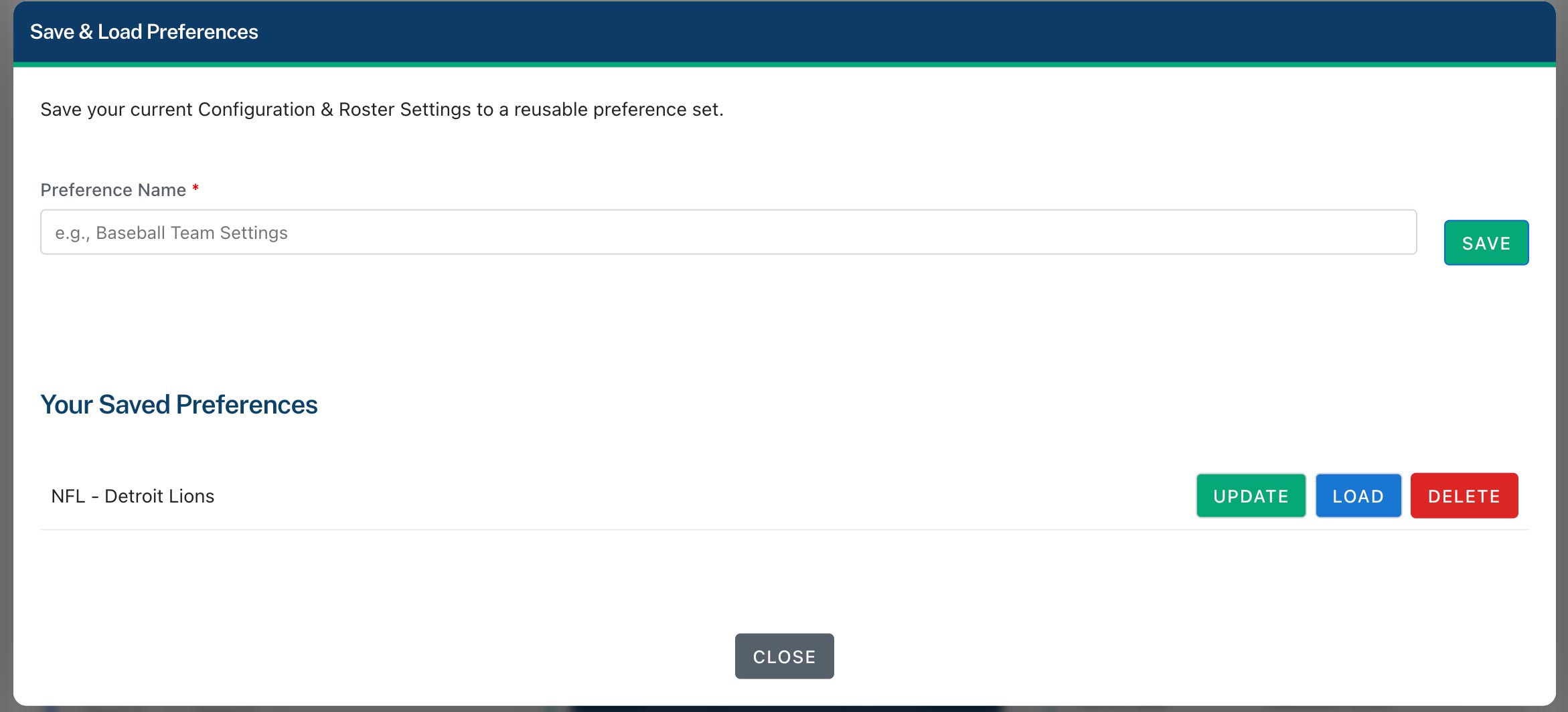
SnapCaption lets you save your preferences for teams you frequently cover. Instead of setting up the file from scratch each time, simply select your saved preference from the Load Saved Default Preferences dropdown to instantly load all your settings.
Quick Workflow Example
If you regularly cover the Lakers at home:
- Save your typical Lakers home game setup (shortcodes, column structure, etc.) as a preference.
- For the next game, select your saved “Lakers Home” preference.
- Add the visiting team.
- Review and export – you’re done in under 30 seconds!
Building Custom Code Lists
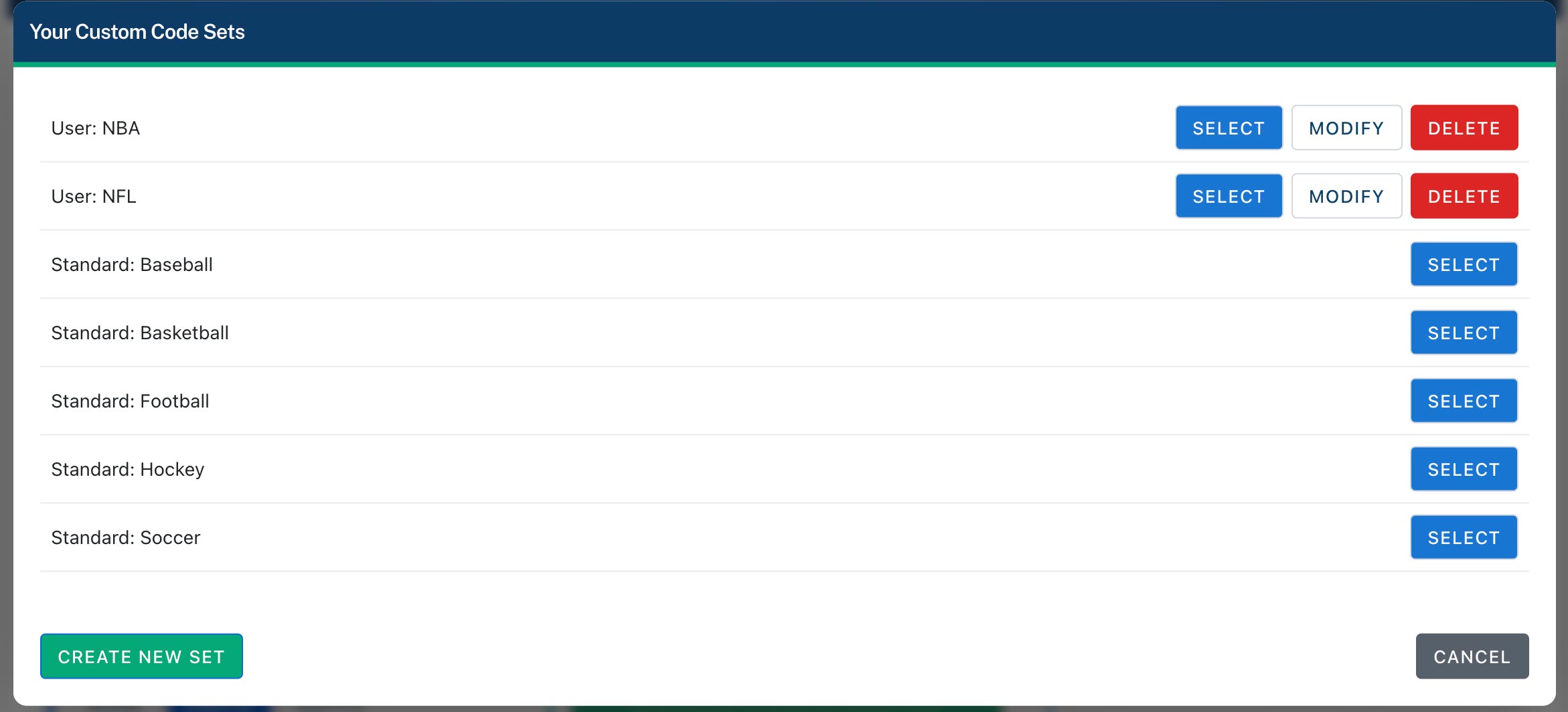
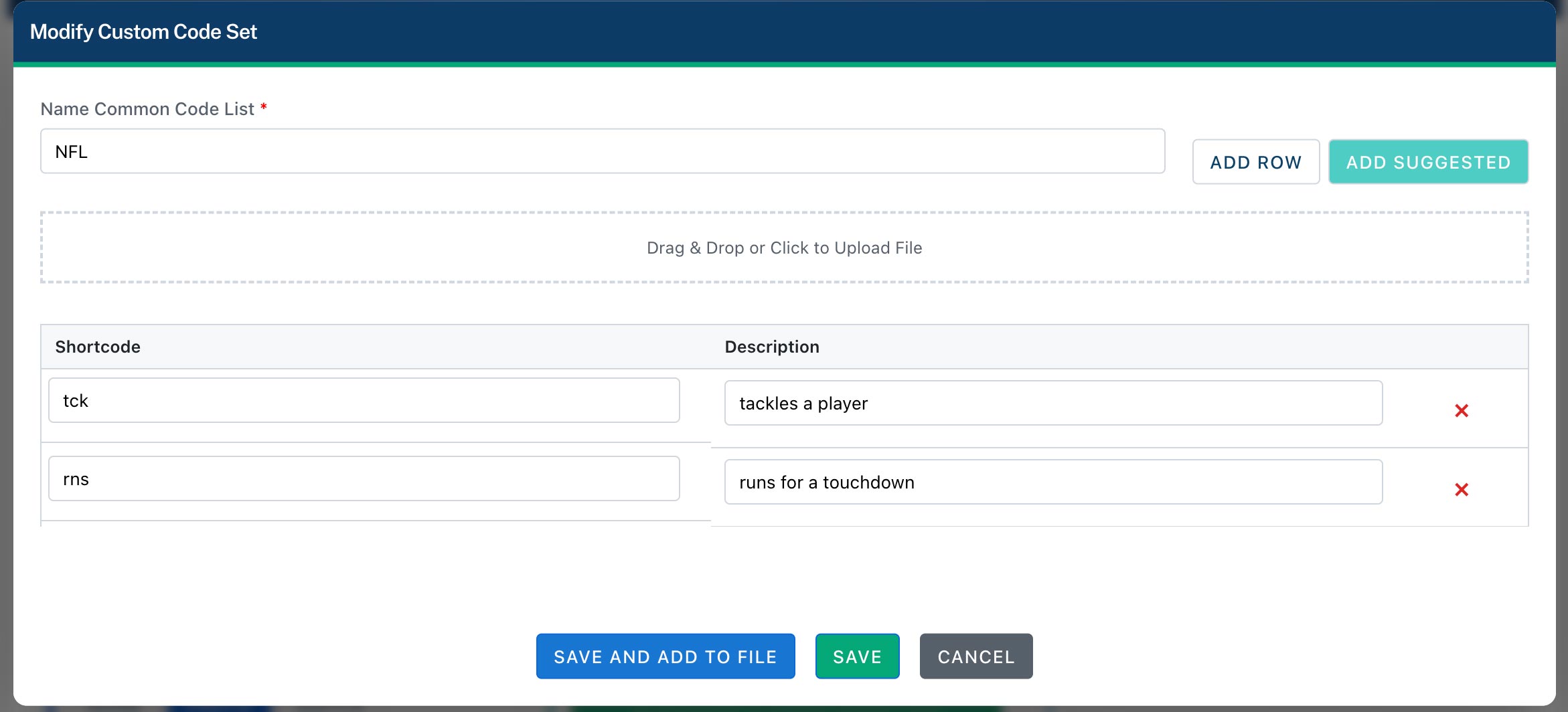
To build your own lists of action codes (like “td” for “scores a touchdown”), click the Build or Add Custom List button. You have three powerful options:
- Create New: Build a list from scratch. Enter your shortcode (e.g., `td`) and its full description (“scores a touchdown”).
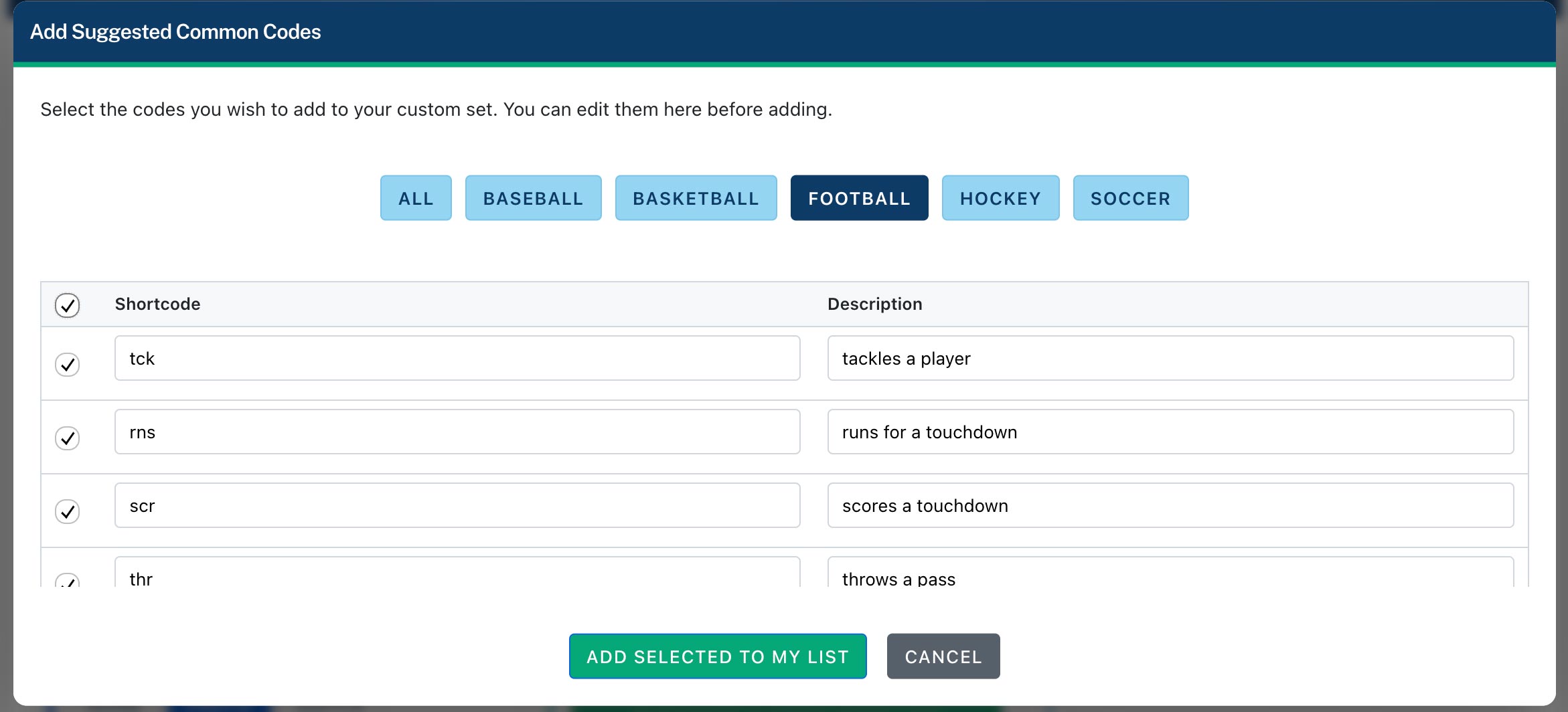
- Add from Library: Choose from our library of suggested codes, filtered by sport, and add them to your own list.
- Import File: Upload your own CSV, Excel, or TSV file. The system will import the first two columns as the shortcode and description.
When you’re done, you can click Save to store the list for later, or Save and Add to File to immediately add your new codes to the roster you’re currently working on.
That’s it! You’re ready to create a custom code replacement file for Photo Mechanic or your preferred software. Log in and start saving hours on every assignment!